Multiple Actions for Hotspots
This guide applies to:
- Basic
- Professional
In this guide
Introduction
This guide will outline a workaround designed for people who would like to use the Hover option to show a tooltip/lightbox to Show More Info and allow the user to Go To URL upon clicking the hotspot.
At this time, the only actions available for hotspots are to open a URL OR show more information—but not both.
This would involve the use of:
- The Professional edition of Draw Attention
- Lightbox layout OR Tooltip Layout with the Click action
- A page builder or plugin that allows you to create buttons
Setting the Layout
Let’s start by making sure that the Draw Attention interactive image layout is set to Lightbox or Tooltip. These layouts will work best as they will allow users to click the hotspot to open a pop-up.
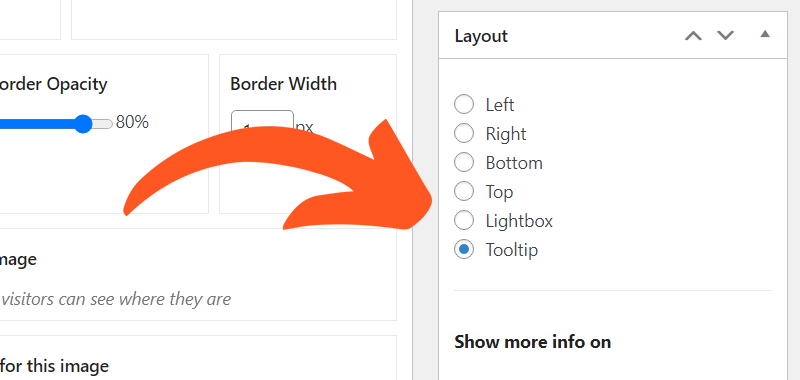
We will note that if you’re utilizing the Tooltip layout, you MUST use the Click action. The Hover action WILL NOT allow users to select or click within the hotspot’s description.
Creating the Link
The fun part comes next! To add a link, head on over to the hotspot of your choice and add some text within the Description area. Using the editor, you’ll be able to highlight the text you wish to transform into a link and enter the URL.
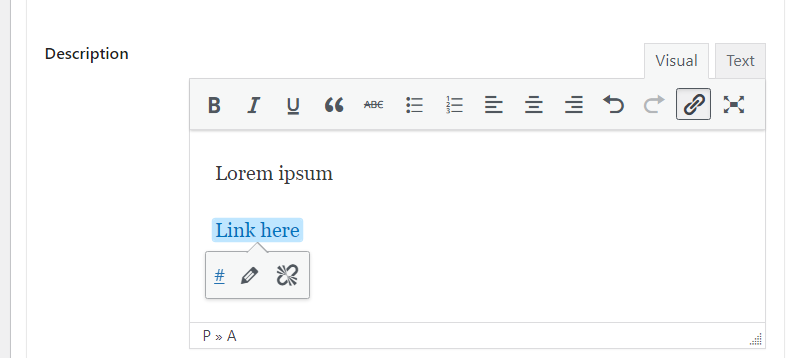
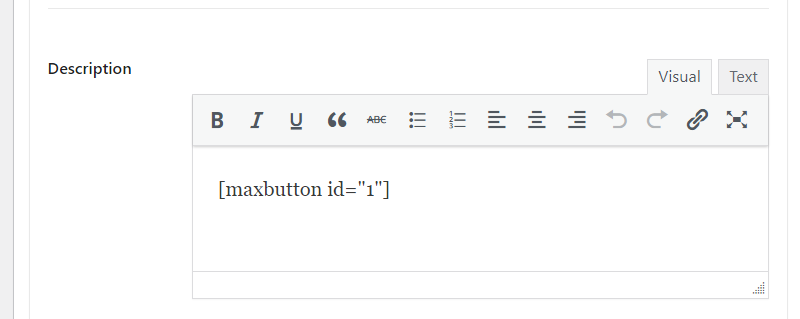
If you’d like to use a button instead, you could use a page builder to create one if it offers any shortcodes for the buttons. Or, you could utilize a nifty plugin for creating a button with a shortcode. For example, Max Buttons would allow you to create a button and display it using a shortcode.
Now, let’s go ahead and test out how this works…
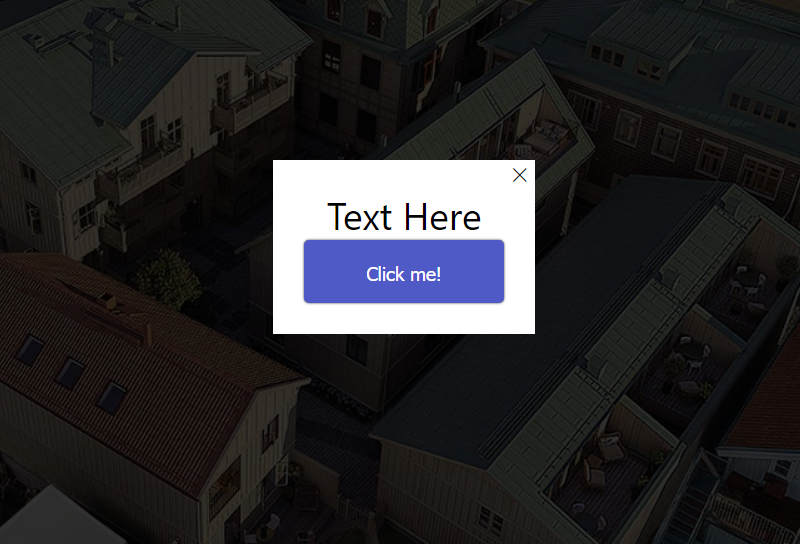
Sweet! This workaround, although not entirely perfect, does offer a loophole in the actions.
If you need a refresher on what certain settings and options do within the interactive image editor, feel free to check this guide out.